Save it. Find it. Share it.
Everything the Jupiter Jots extension does, in one place: saving and sorting, notes and reading paths, share links, an assistant that uses your own AI key, and agents in your terminal. All of it free, with your library kept on your device.
Save in one click
Save the tab you are on from wherever you are, with a line on why it mattered.
- Three places, one app
- The toolbar popup, the side panel and the full-screen library all save the current tab.
- Right-click or a shortcut
- Save page or Save link from the right-click menu, or press Alt+Shift+S on any page.
- Page details come along
- The title, site icon, description and preview image are read from the page as you save.
- Kept up to date
- Open a saved page and missing details fill in. If the page changed, you choose which details to update.
- No duplicates
- Save a page twice and Jupiter Jots tells you, instead of making a copy.
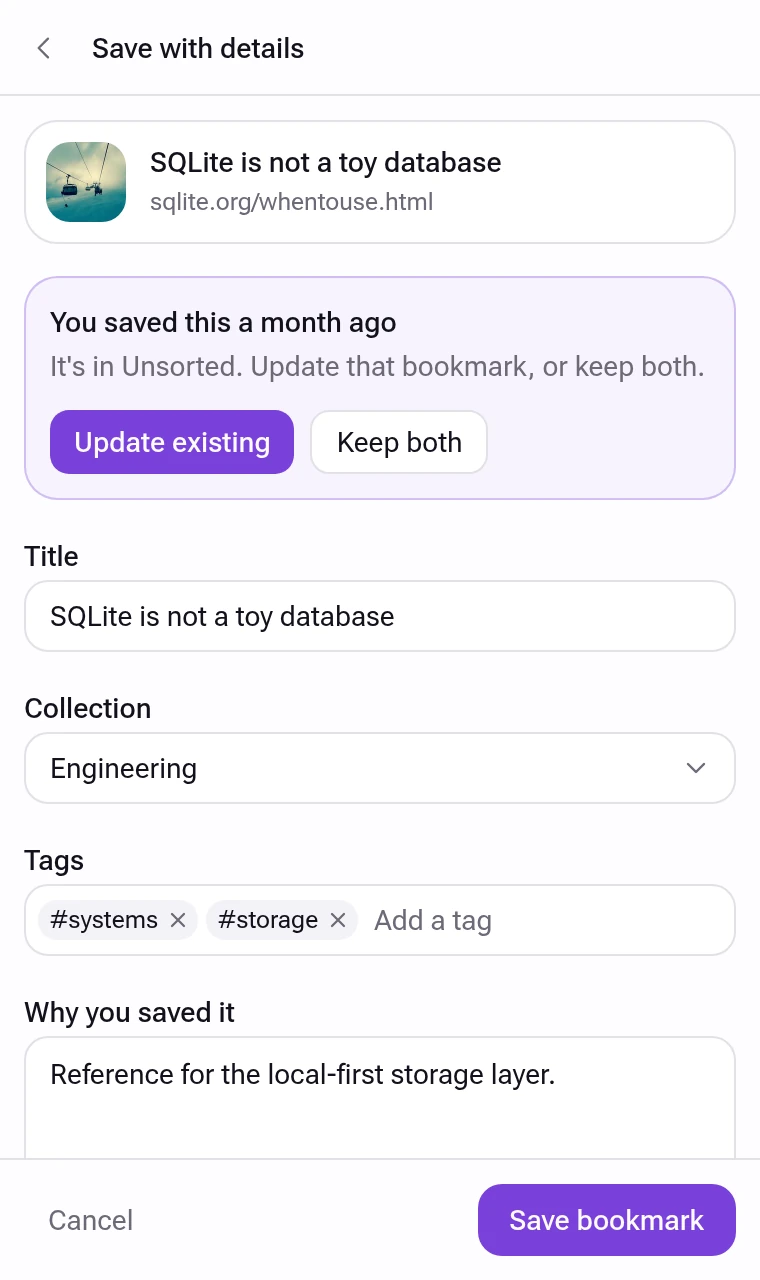
Page details changed
New preview image and description
Sort it your way
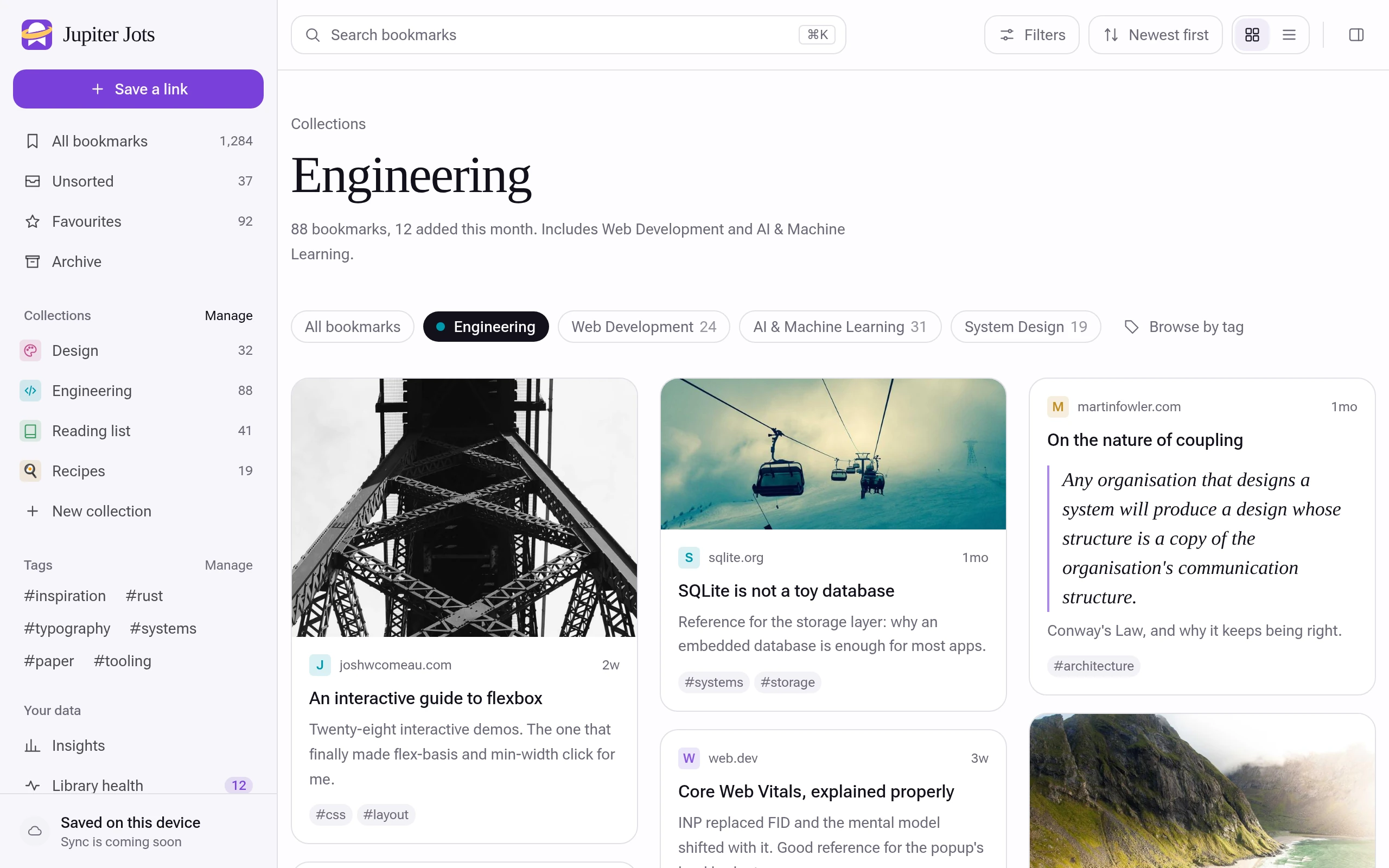
Collections nest as deep as you like, and tags, favourites and a reading list cut across them.
- Collections inside collections
- Give each an icon, emoji or site logo and a colour. Reorder, archive, or delete and choose where its bookmarks go.
- Tags
- Add as many as you like. Rename and merge them, with suggestions when two look like the same tag.
- Reading list
- Mark a bookmark To read, Reading or Done, and work through the list.
- Favourites and archive
- Star what you open every day; archive what you are finished with but want to keep.
- Many at once
- Select several bookmarks to move, tag, archive or trash them together.
Find it again
Search reads your notes as well as the titles, so the reason you saved something is how you find it.
- Search everything you wrote
- Titles, addresses, notes, page descriptions, tags and collection names. Use "quotes" for a phrase and -word to leave one out.
- Filters and sorting
- Narrow by collection, tag, favourites, archive or date. Sort by newest, oldest, title or last opened, in a grid or a list.
- List and details side by side
- Choose a bookmark, note or collection and its details open next to the list, ready to edit in place.
- Command palette
- Press Ctrl+K (⌘K on a Mac) to jump to any screen, or type a question for Ask Jupiter.
 Databases
- PPostgres locks, explainednotion.so
- AAvoiding deadlockspostgresql.org
- RRetries that don’t stampedegithub.com
- DDesigning data-intensive appsoreilly.com
Postgres locks, explained
notion.so
Note
Clearest take on row locks. Read before the queue rewrite.
Clear out without losing anything
Trash, undo and a health check make cleaning up safe to do on a whim.
- Trash first
- Deleted bookmarks, notes and graphs wait in Trash. Restore them, delete one forever, or empty the lot.
- Undo
- Moves, deletes and whole imports can be undone straight after.
- Library health
- Duplicates to merge, untagged and unsorted bookmarks, and a broken-link check that runs only when you ask.
- Tab sweep
- File your open tabs into collections a batch at a time, then close them. Undo reopens them where they were.
Library health12
Duplicates
Check
Broken links
34
Untagged
8
Unsorted
Trash
- BookmarkOld conference scheduleRestore
- NoteDraft reading planRestore
- GraphLearning RustRestore
Write it down
Notes are your own writing, filed and tagged like bookmarks and linked to what they are about.
- Markdown
- Bold, italic, code, lists and quotes, in an editor that stays out of the way.
- Linked to your library
- Link a note to the bookmarks and collections it is about, and open them from the note.
- Speak to type
- Dictate into a note with the mic button. Chrome’s speech service, run by Google, turns speech into text.
- Locked notes
- Lock a note with a password and it is encrypted on this device. Hide its title too if you like.
- Hide from AI
- Any note can be kept away from Ask Jupiter and connected agents. Locked notes always are.
NotesWhy the queue deadlocks
Short version: two workers take row locks in a different order.
Always lock in id order.
Fix with SELECT … FOR UPDATE
Locked note
Title hidden. Encrypted on this device.
Turn saves into a reading path
A graph puts bookmarks, collections and notes in the order you would read them.
- Built from what you saved
- A graph is a second view over items already in your library, never a separate copy.
- Read as you go
- Open a bookmark’s details from the graph, mark it read, and watch the progress bar fill.
- Collections as graphs
- Any collection can be opened as a graph of what is inside it.
- Share or trash
- Share a graph as a link. A deleted graph goes to Trash, where you can restore it.
Learning RustShare a link, not your library
Pick the bookmarks, collections, notes or graphs to share. Everything else stays on your device.
- Unlisted, public or password
- Unlisted links are for whoever you send them to. Public ones are listed on Explore. Password-protected ones are encrypted in your browser.
- Live or a snapshot
- A live share updates as you edit, and pages already open refresh. A snapshot keeps the version you shared.
- Comments, moderated
- Open, Approve first or Off, with blocked words and one queue for every share.
- Expiry and revoke
- Links can expire after 7, 30 or 90 days, password shares can cap their views, and any link can be revoked. No account: a sharing code made on your device manages them.
- Locked notes, if you choose
- Include them and viewers need each note’s own password; the note is opened in their browser.
- Fork a share
- Save a share you were sent to your own library from the share page or with Import a share. A private share’s password is typed in the extension, and locked notes stay locked.
New shareAsk your library
An assistant that works on what you saved, with your own AI key, and changes nothing until you say so.
- Your provider, your key
- Anthropic, OpenAI, Google, DeepSeek, xAI, Meta or OpenRouter. Pick a model, and refresh the list when providers add new ones.
- Effort levels
- Low, Medium or High: how long the model thinks before it answers. Lower uses fewer tokens.
- A locked key vault
- Keys are encrypted with your password on this device. Move them to another one with a transfer code or a QR code.
- Proposals, then Apply
- Changes are staged for review. Apply them, discard them, or undo them afterwards.
- Plans for bigger jobs
- A request with several steps gets a plan, and Jupiter keeps working through it until it is done.
- Tool permissions
- Set each tool Off, Ask or On, or turn on read-only for every assistant at once.
What did I save about database locks?
You saved three pieces on Postgres locking. The shortest is a practical guide to deadlocks; the other two go deeper into SELECT FOR UPDATE and retries.
- Postgres locks, explainednotion.so
- Avoiding deadlockspostgresql.org
- Retries that don’t stampedegithub.com
Proposed change · waiting for you
Move these 3 bookmarks into Databases.
Work from your terminal
Claude Code and other MCP clients can search and organise your library through a bridge on your computer.
- One line of config
- Add npx -y jupiter-jots-mcp to your client. No account, and no Jupiter Jots server in between.
- Every write waits
- Saves and edits appear in Connected agents for you to approve or deny.
- Its own permissions
- Agents have their own tool settings, and start stricter than Ask Jupiter.
- Yours to cut off
- Turn the bridge off, revoke it, or repair the pairing at any time.
$ claude
› Save the best Postgres locking guide to
my Databases collection.
Searching your library…
✓ Found 3 related bookmarks.
Write request sent · waiting for approval
Connected agents · Waiting for you
Save bookmark
Claude Code
“Postgres locks, explained” → Databases
The agent cannot change your library until you decide.
See what you go back to
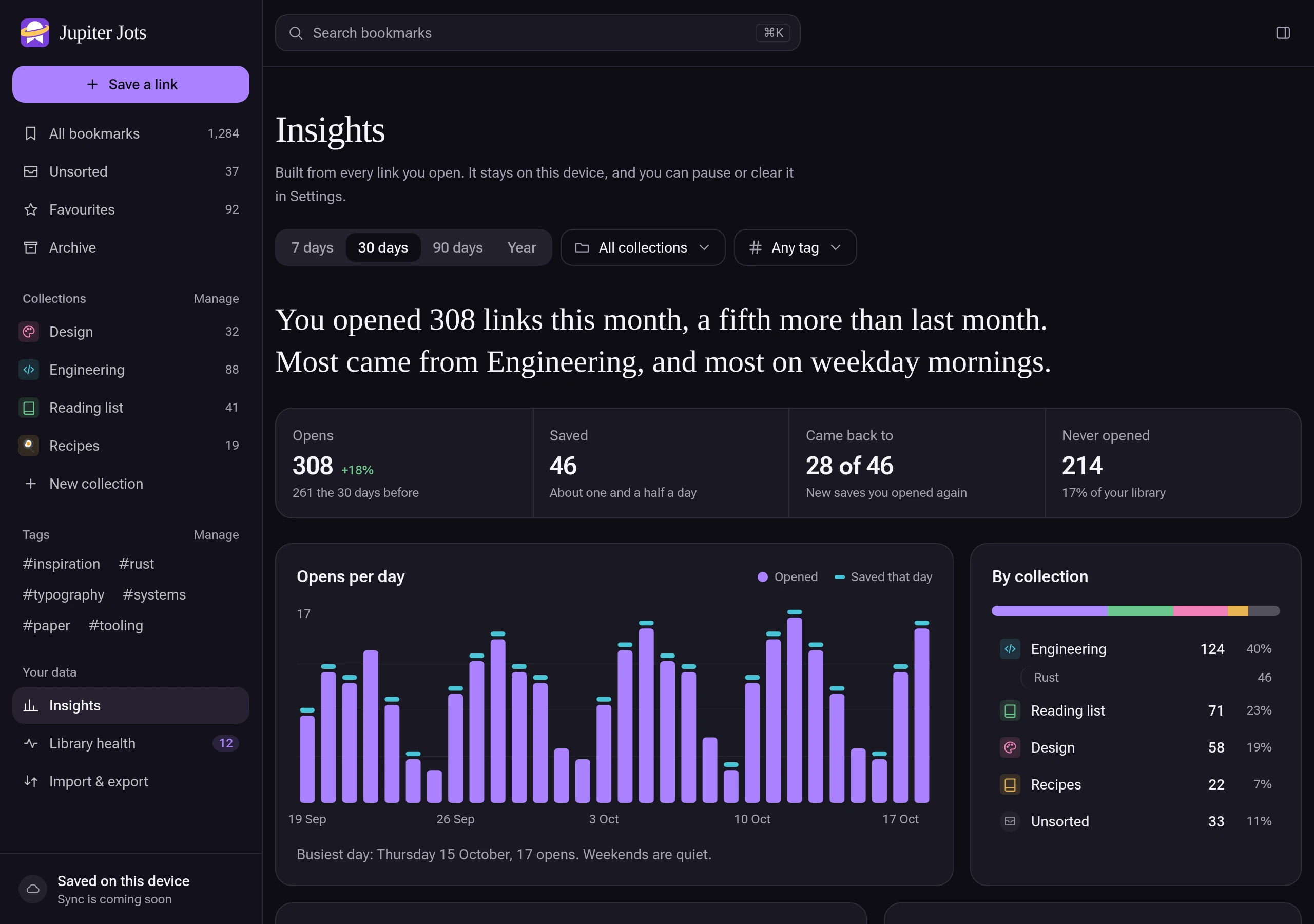
Insights and the activity log are worked out on your computer from what you open and change.
- Insights
- Opens per day, by collection, site and tag, when in the week you read, what you open most and what you never open.
- Suggestions
- Small next steps, like tagging untagged links or giving a daily site a shortcut.
- Activity log
- Every create, update and delete, filtered by action, item, who made it (you, Ask Jupiter or an agent) and when.
- Titles, not contents
- Note and page text never go in the log. Pause it or clear it in Settings.
Move in, move out
Bring your bookmarks with you, and take all of it with you whenever you like.
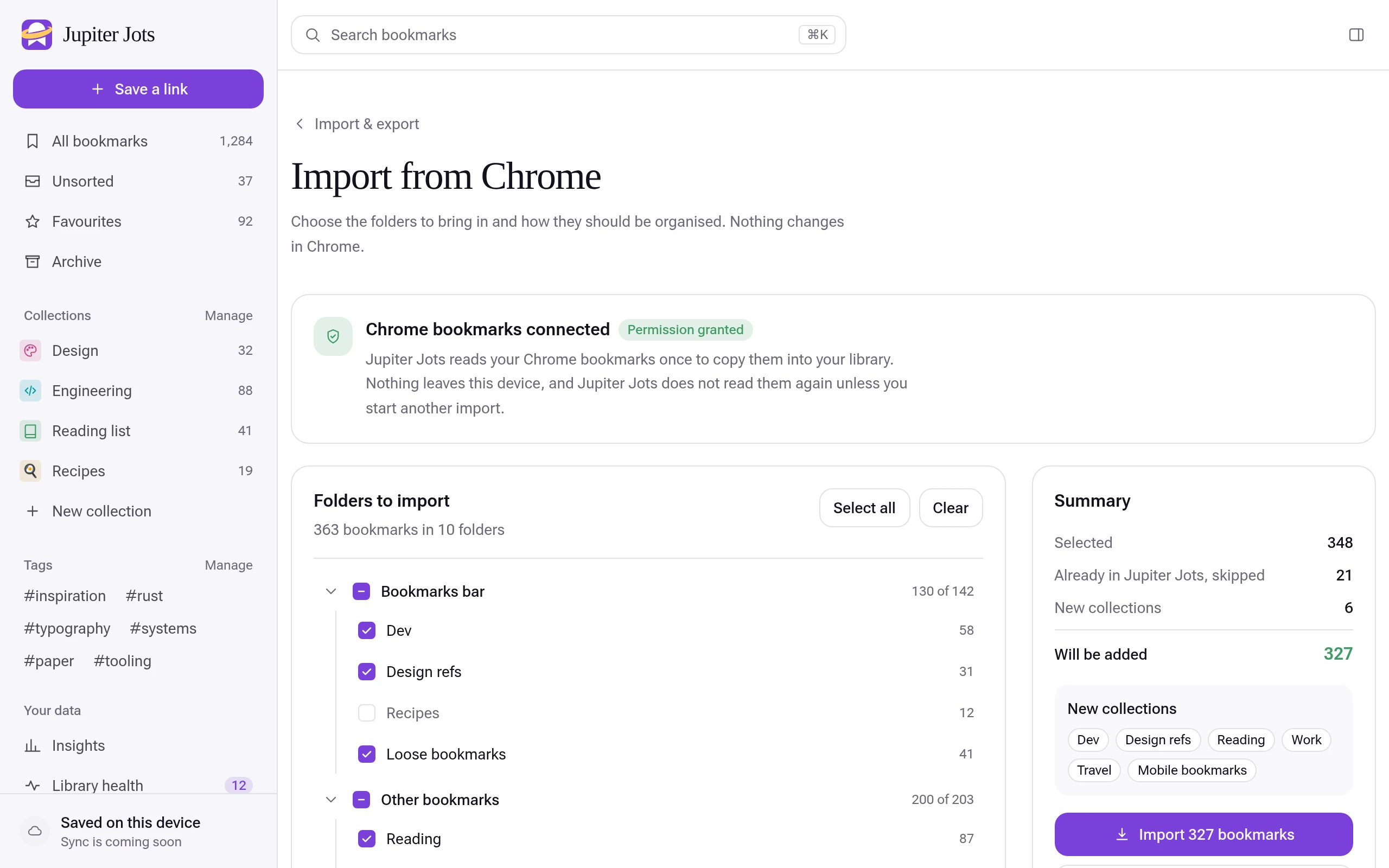
- Import from Chrome
- Pick folders and they arrive as nested collections, with pages you already saved skipped.
- From other apps
- Bookmarks HTML from any browser, CSV from Raindrop or Pocket, or a Jupiter Jots backup.
- Undo an import
- A whole import comes back out in one step. Your Chrome bookmarks are never changed.
- Export what you choose
- JSON, HTML or CSV, for the whole library, one collection or just the items you pick. Select in the Library, Notes or Collections and choose Export selected.
- Backups restored
- Importing a backup brings back graphs, notes and chats, points at bookmarks you already have instead of duplicating them, and lets you choose the destination collection.
Kept on your device
No account and no tracking. Your library lives in this browser.
- Stored locally
- Bookmarks, notes, collections and graphs live in IndexedDB on this computer.
- Shares on our server
- Only what you share is uploaded. Password shares are encrypted first, so our server can’t read them.
- AI goes straight to your provider
- Ask Jupiter sends requests from your browser to the provider you chose, never through us.
- No analytics, no ads
- Nothing to sign up for, and nothing watching how you use it.
This browser
Your library
- Bookmarks
- Notes
- Collections
- Graphs
- Tags
- Activity
IndexedDB, on this computer
Our server
Only what you share, and comments on it
Your AI provider
Only when you ask, with your key
Make it yours
A handful of settings that change how Jupiter Jots looks and saves.
- Appearance
- System, light or dark, and denser cards to fit more on screen.
- Saving defaults
- A default collection, saving with a single click, and whether to fetch page previews.
- Shortcuts that open sites
- Up to nine keyboard shortcuts, each opening a site you choose.
- Usage guide
- Tips for the library and Ask Jupiter, inside Settings.
- Clear local data
- Delete the whole library from this device in one step, after a confirmation.
Settings- ThemeSystemLightDark
- Denser cards in the library
- Save with a single click
- Fetch page previews and descriptions
- ShortcutsAltShift1opens your calendar
Sync across devices
Encrypted on your device before it is uploaded, with an optional account.
Reading reminders
A nudge about what you saved to read.
Automatic backups
A rolling local copy on a schedule. Until then, use Back up now.
More browsers and phones
Firefox, Android and iOS.
Start with the tab you keep meaning to read
Free in Chrome, Brave and Edge. No account to create.